The complete flow
Everything SagiFlo does for your business — in one picture flow.
Follow a job from the first enquiry to a five-star review, and see the real product at every step. Each screen below is a live capture from SagiFlo — click any image to enlarge it.
Step 1
Connect your tools once
About an afternoonLink Google Calendar, Gmail, your Google Business Profile, Telegram, and QuickBooks with secure Google/Intuit sign-in. No passwords are shared, tokens stay encrypted in the backend — never in the dashboard — and you can disconnect any one of them in a single click.
- Secure OAuth — approve access on Google/Intuit’s own screen
- Honest health status on every connection
- Revoke any integration instantly, no support ticket
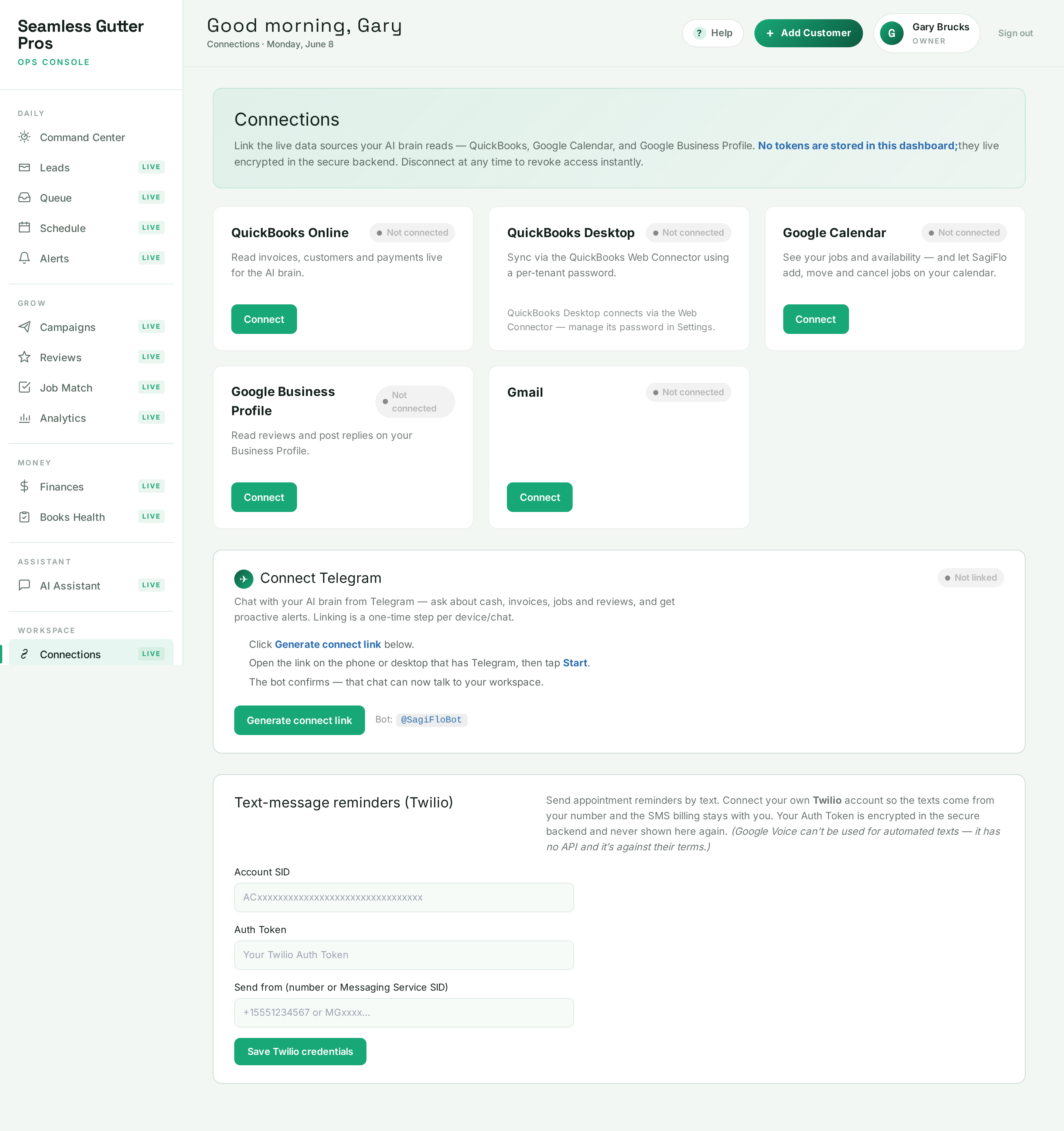
Connections — QuickBooks, Google Calendar, Gmail and Telegram, each with live health status and one-click disconnect. Step 2
Start every day already caught up
Before you’ve had coffee, SagiFlo has read your overnight leads, calendar, and reviews and built Today’s Focus — the short list of what actually moves the needle. A live activity feed shows every change across every connected tool in one place, so nothing is hiding in another app.
- “Today’s Focus” ranks what needs you first
- Live activity feed across every tool
- Lead, city, and service metrics at a glance — no spreadsheet
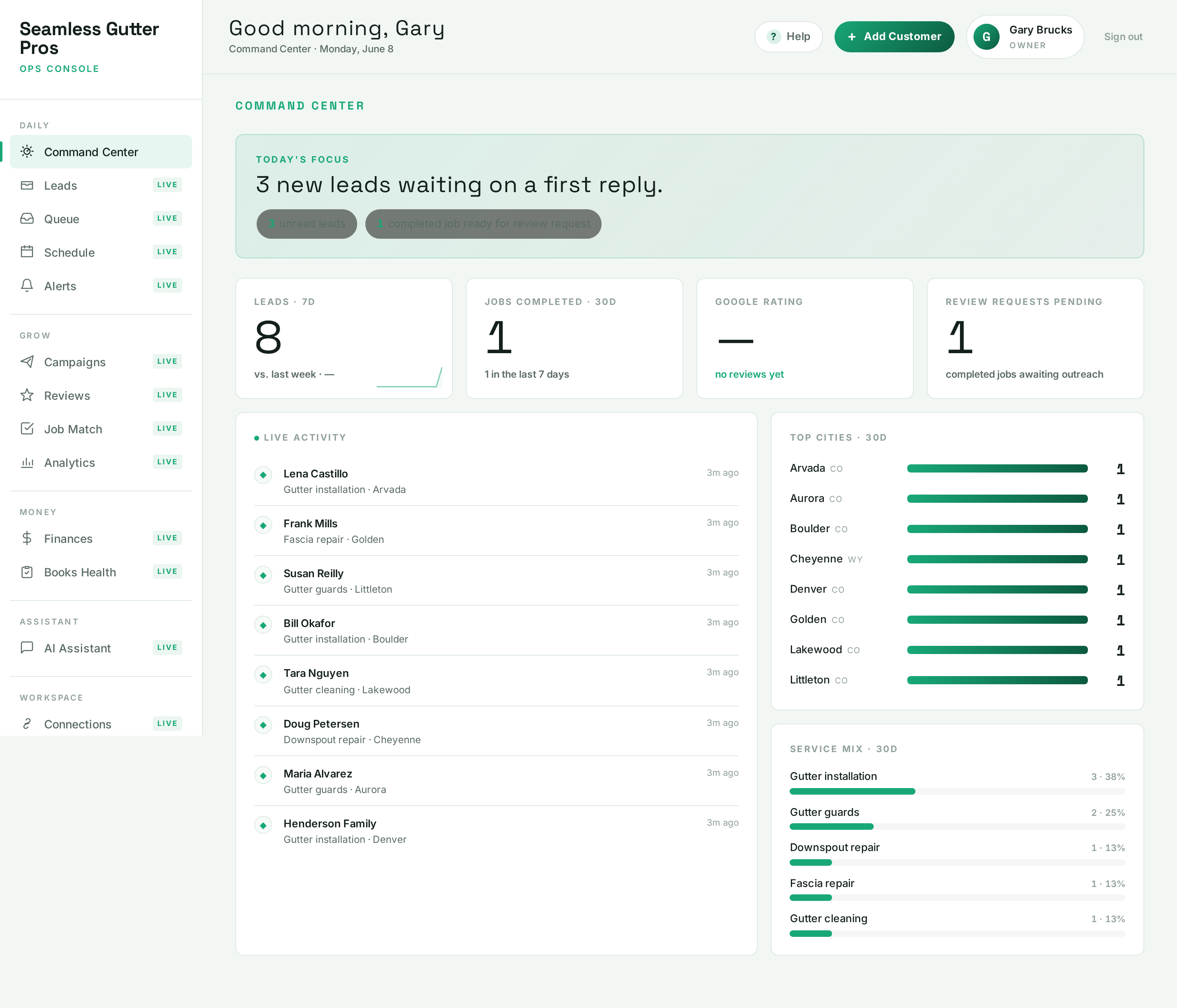
Command Center — Today’s Focus, a live cross-tool activity feed, and your lead, city and service metrics. Step 3
Catch every lead and move it forward
New enquiries from your website form land as leads automatically — none sit unread. Every lead lives on one board through New, Contacted, Quoted, Scheduled, Completed and Reviewed, and the agent flags the ones going cold and can draft an email for your approval before a deal slips away.
- Website enquiries become tracked leads automatically
- One pipeline board — drag a card to move the deal
- Add by hand, paste, or CSV-import a whole customer list
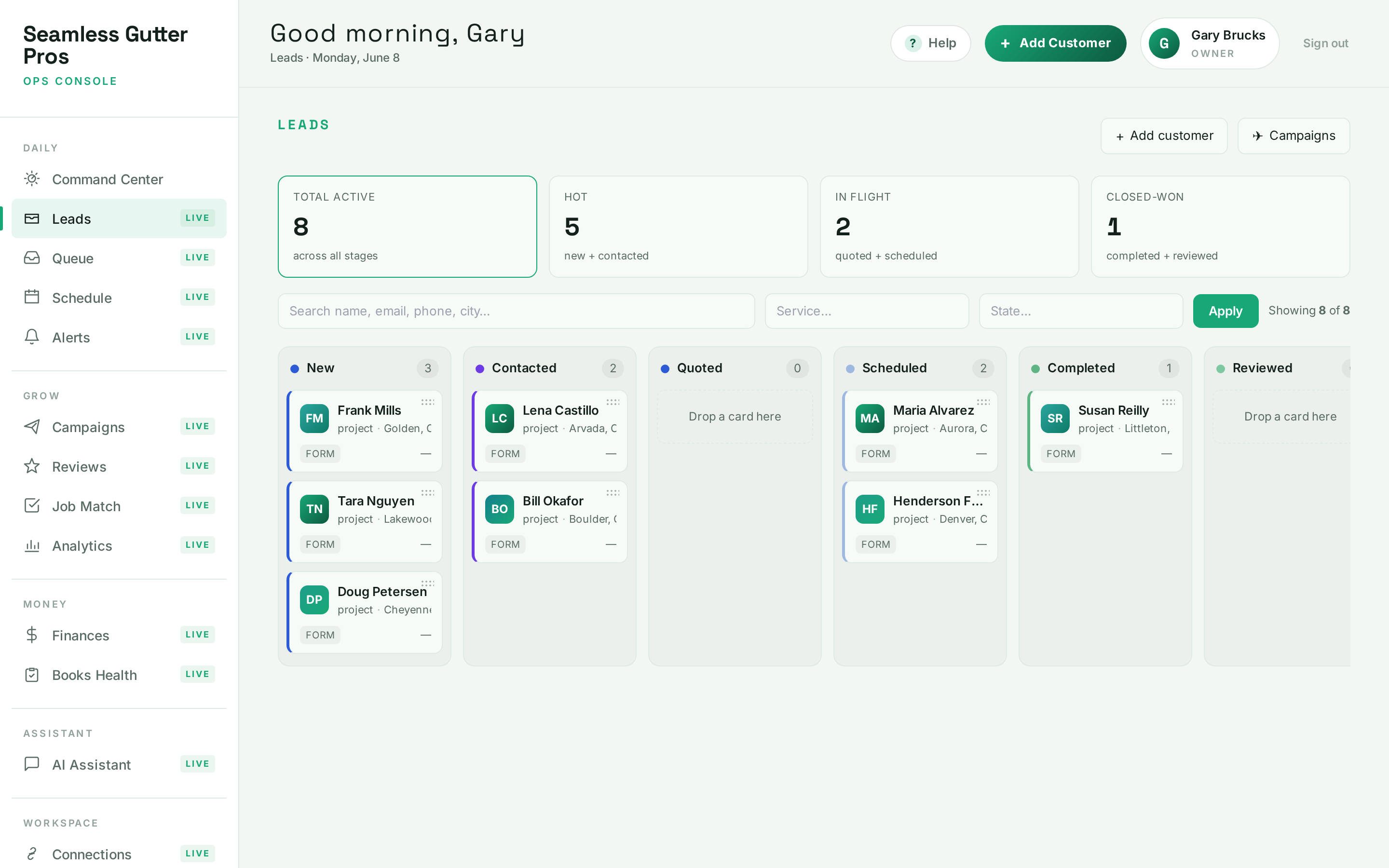
Leads pipeline — every lead across New → Reviewed, with hot, in-flight and closed-won counts up top. Step 4
Turn won work into booked jobs
Work that’s ready to schedule waits in one queue. Pick a date and SagiFlo writes the appointment straight to your Google Calendar — with an optional Google Meet link — and tracks it. Reschedule or unschedule in a single click, and the customer gets the confirmation.
- Book a job and it’s written to Google Calendar
- Optional Google Meet link added automatically
- Reschedule or unschedule in one click
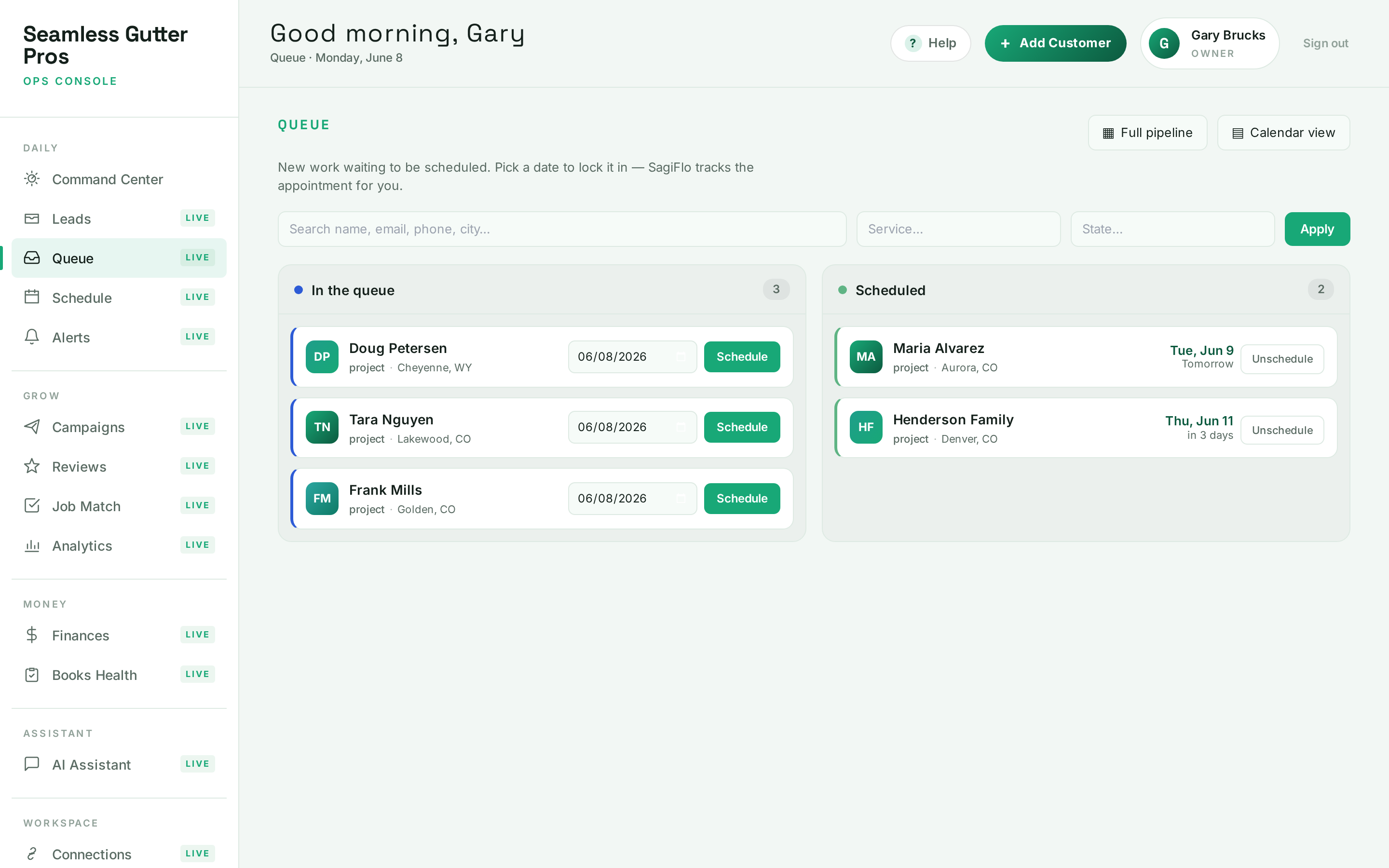
Schedule queue — work waiting to be booked; pick a date and SagiFlo writes it to your calendar and tracks it. Step 5
Keep one calendar everyone trusts
Your calendar lives inside SagiFlo with true two-way sync. Events you booked elsewhere are pulled in; jobs SagiFlo created are pushed out — and it only ever moves or cancels the events it made. If two jobs drift toward the same slot, it spots the overlap and proposes the fix before anyone’s left waiting.
- Two-way Google Calendar sync, clearly labelled by source
- Conflict detection proposes the reschedule early
- Each person gets their own “My Schedule”; crews can share
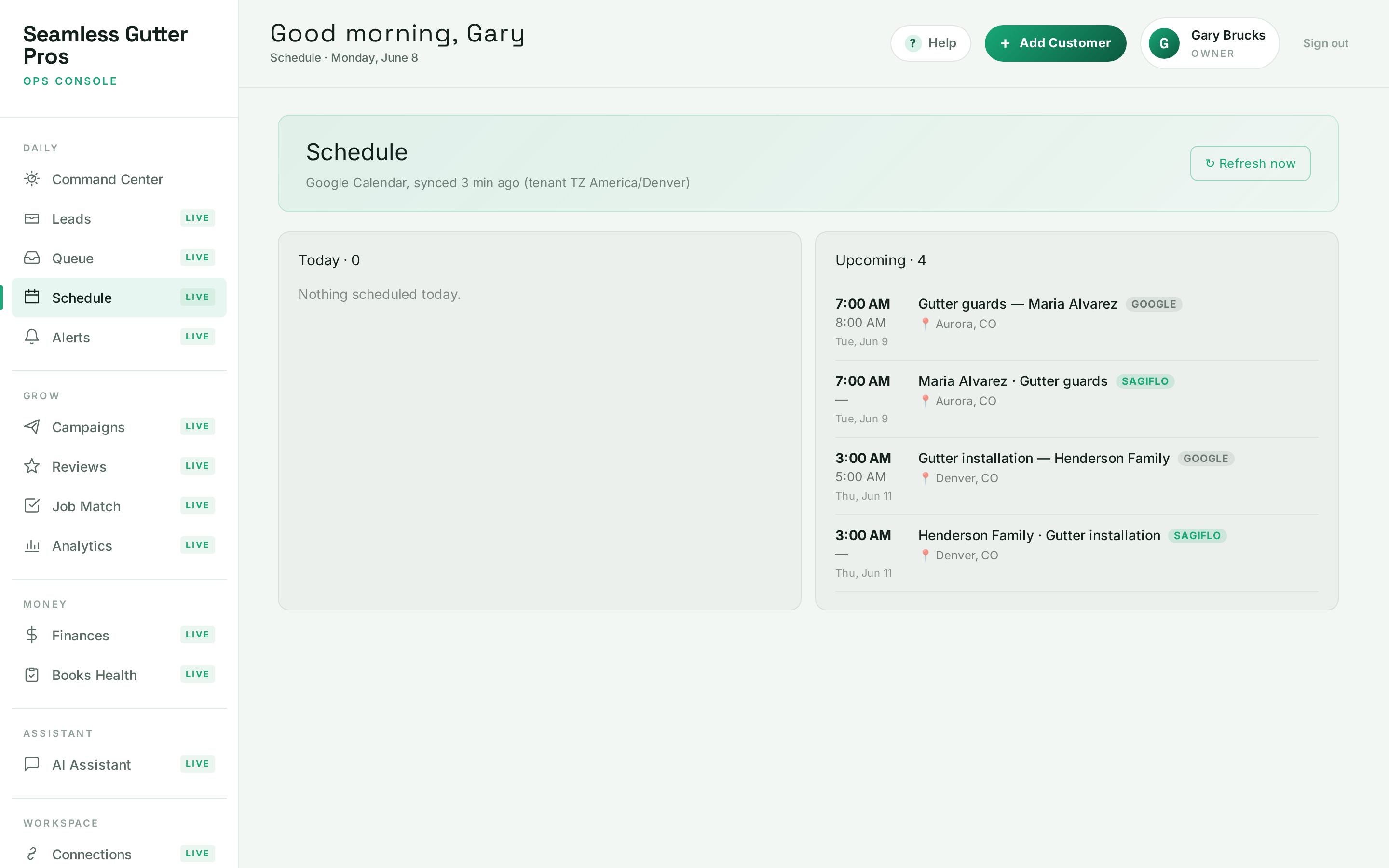
Two-way sync — events tagged GOOGLE were pulled in; events tagged SAGIFLO were created by SagiFlo. Step 6
Cut no-shows without lifting a finger
Email & textOnce a job is on the calendar, SagiFlo sends the appointment reminders for you — by email and by text — so customers turn up and you stop playing phone tag. Texts are sent by SagiFlo, so there’s nothing to connect: just flip them on under Settings.
- Automatic email + SMS appointment reminders
- Text reminders sent by SagiFlo — one toggle to enable
- Delete or move a job and its reminders update with it
Step 7
Win more 5-star reviews, automatically
Approve in TelegramThe moment a job is marked done is the moment to ask — and SagiFlo knows it. It drafts a review request timed while the work is fresh and sends it from your own Gmail or by text once you approve. Your live Google rating and every review sit in one log, and you’re alerted the moment a new one lands or your rating moves.
- Review requests timed to completed jobs
- Your live Google rating + every review in one log
- Alerts you when a new review lands or your rating shifts
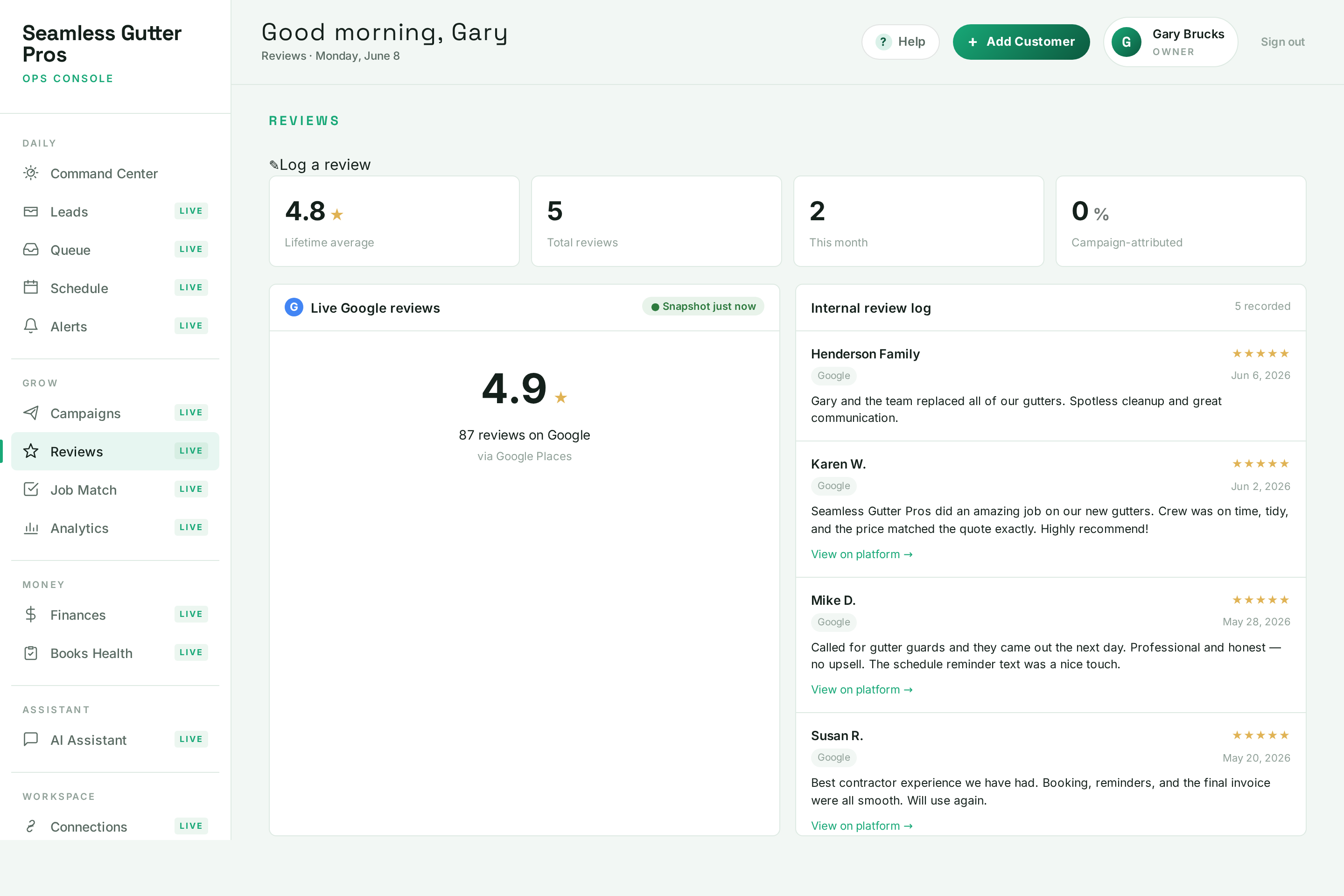
Reviews — your live Google rating and review count, with automatic review requests after completed jobs. Step 8
Follow up and refill the pipeline
SagiFlo keeps a running list of customers who are due for a review request, picks the right template, and sends it on your approval — timed to the finished job and never double-sent. Then it tracks opens, clicks, and reviews earned, and honors every unsubscribe automatically, so you stay on the right side of the rules.
- Eligible-customer queue with editable templates
- Tracks opens, clicks and reviews earned per send
- Unsubscribes are respected automatically
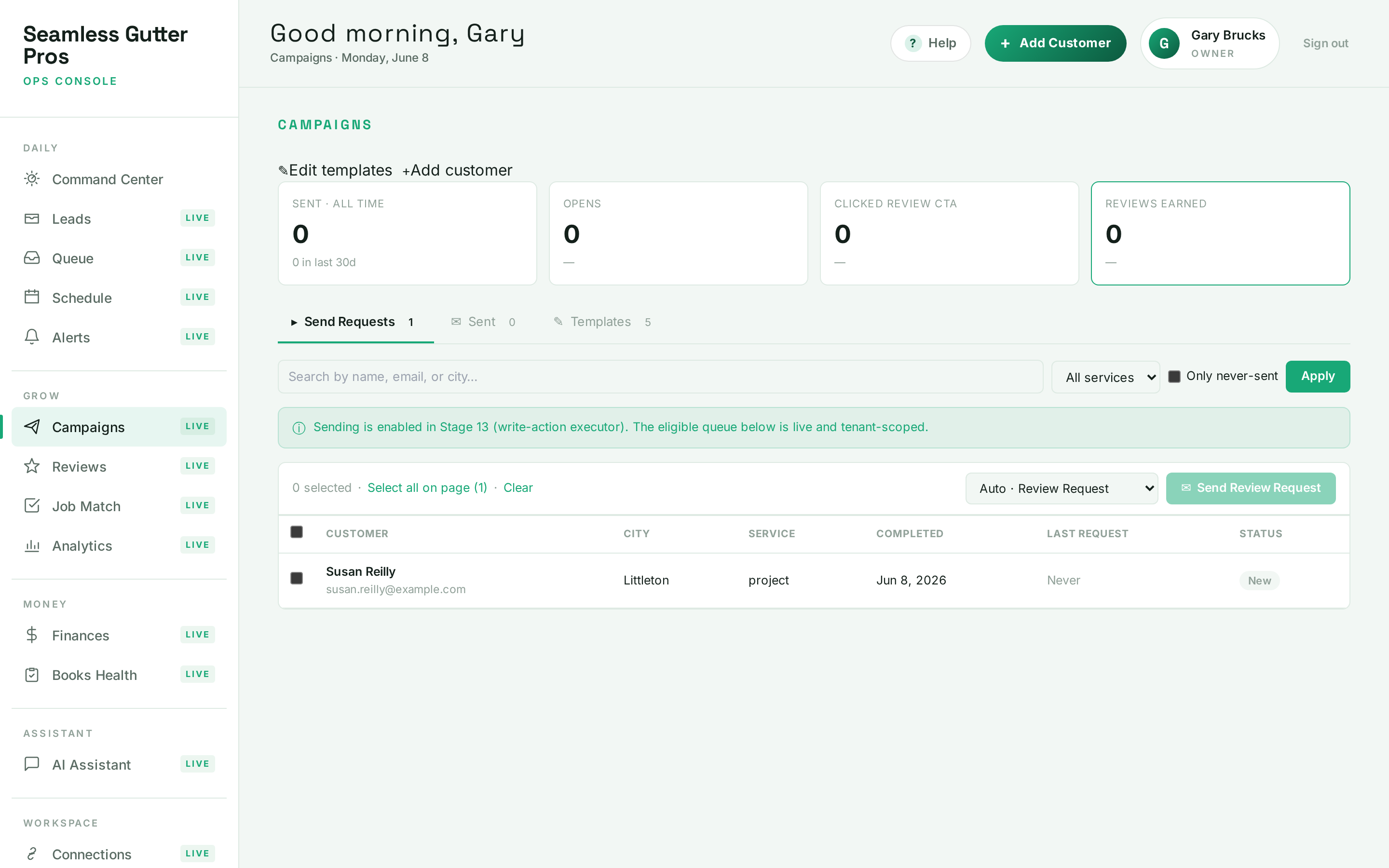
Campaigns — the eligible-customer queue for review requests and follow-ups, with open/click/review tracking. Step 9
See exactly what’s working
No spreadsheet wrangling: SagiFlo charts your leads over time by source, your conversion funnel from enquiry to closed, your service mix, where leads come from, and the return on each campaign template — all refreshed from your live data.
- Leads over time, by source
- Conversion funnel + service mix
- Campaign ROI by template
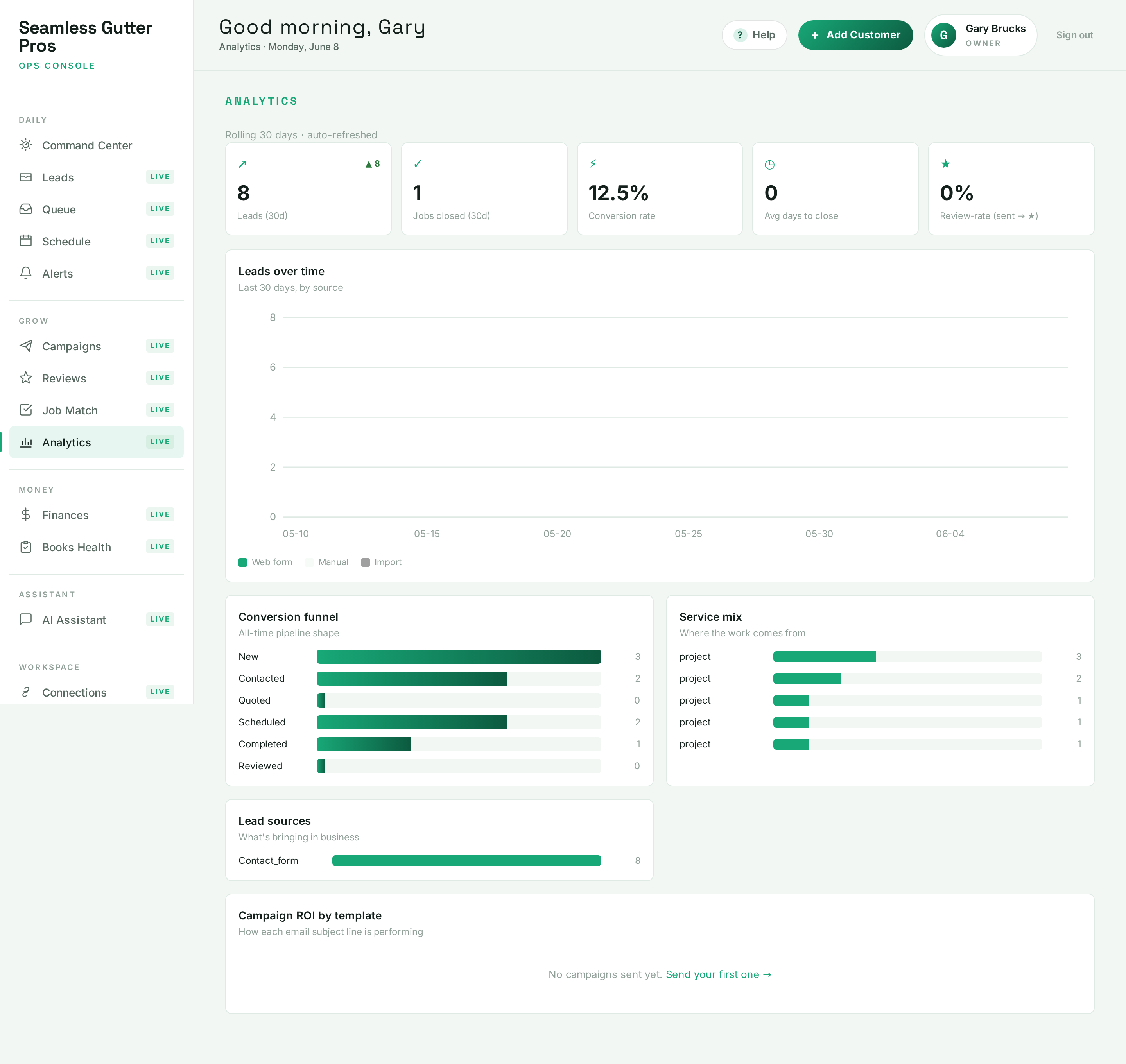
Analytics — leads over time, the conversion funnel, service mix, lead sources, and campaign ROI. Step 10
Know who owes you — at a glance
QuickBooksOn any QuickBooks plan, SagiFlo reads your invoices, payments, and cash flow and tells you what’s unpaid and overdue — and can draft a polite nudge on the invoices that slipped past due. It’s read-only: SagiFlo reads the numbers, it never moves your money.
- Live view of what’s unpaid and overdue
- Drafts polite payment reminders for your approval
- Read-only — your money is never moved
Step 11
Just ask — from your phone
You stay in controlForget the dashboard for a second and text your agent. “What’s overdue?” “Did the Henderson review come in?” “What’s tomorrow look like?” It answers from your live business data in Telegram — and anything it proposes off the back of it waits for your one-tap approval. The same Q&A lives in the dashboard Assistant.
- Plain-English answers from live data, in Telegram
- Every action it proposes is approval-gated
- Permission-scoped per teammate — they see only what you allow
SagiFlo Agentonline · monitoring your businessInvoice #1042 ($3,200) is 6 days overdue. Want me to send a polite reminder?Yes, send itReminder sent via email & logged in QuickBooks. I’ll follow up in 3 days.The Henderson job is marked done. Want me to text them a review request?ApproveEdit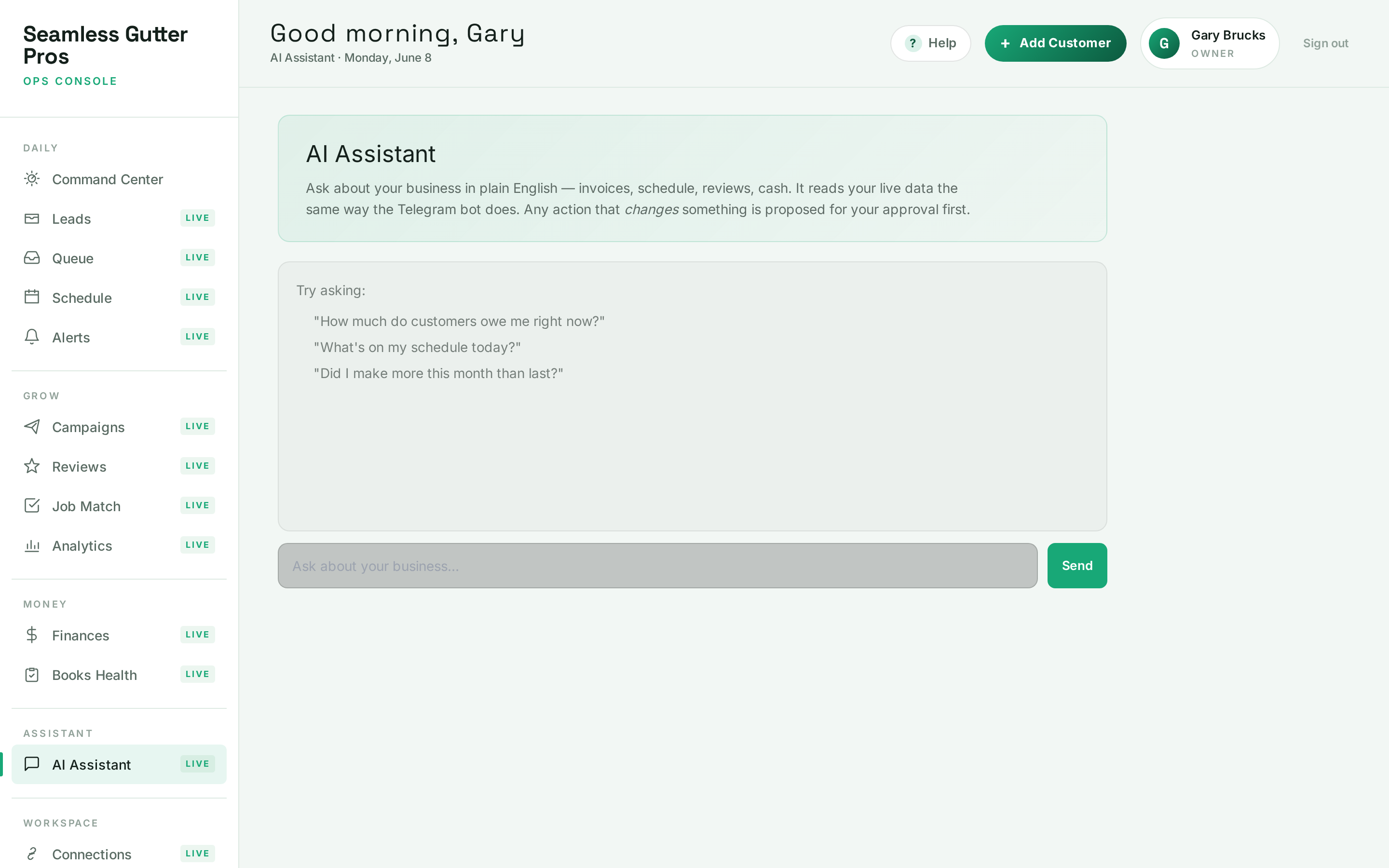
Assistant — the same plain-English Q&A in your dashboard; any change it proposes waits for your approval.


The guardrails
It proposes. You approve. That’s the whole design.
Approval before action
Every customer-facing or money-related step is proposed and waits for your tap. The agent drafts; you decide.
Read-mostly by default
Finances are read-only — the agent reads QuickBooks, it never moves your money. Email and texts send only on your approval.
Your access, your call
Tokens stay encrypted in the backend, never in the dashboard. Revoke any integration in one click, anytime.
See it run on your own business.
Connect your tools and by this afternoon the agent is already watching. Cancel anytime during your 7-day trial and pay nothing.